Every year around Janmashtami, your Instagram and WhatsApp feeds start filling up with the same kind of photo – someone’s regular selfie turned into a Krishna-style portrait, complete with a peacock feather crown, a flute, and that soft golden temple lighting. If you’ve been wondering how people are pulling this off, the answer is simple: they’re using Janmashtami AI photo editing prompts with a well-written line of text and one clear photo of themselves.
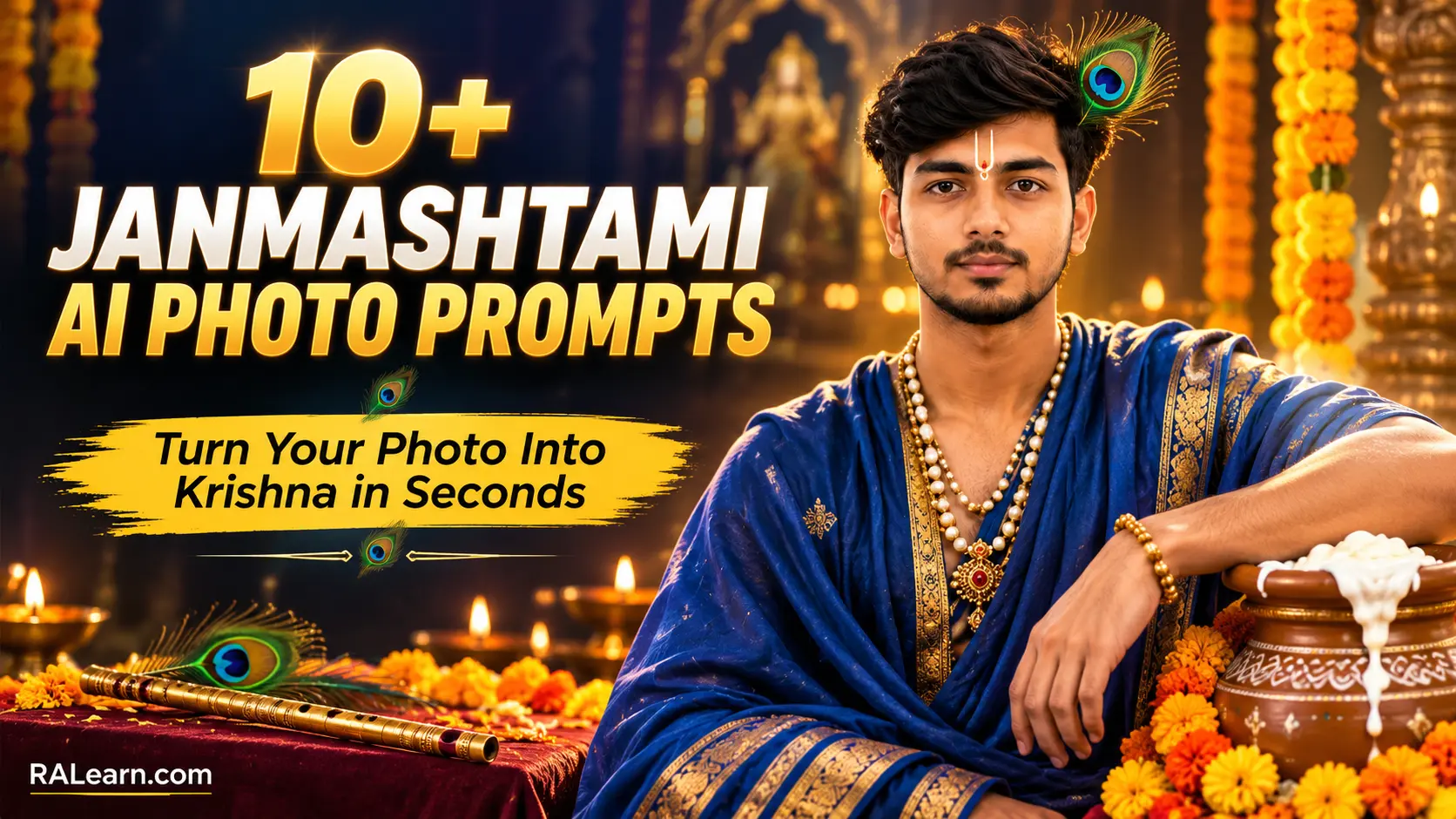
This guide walks you through exactly how that works. You’ll find the full process for beginners, more than ten original Lord Krishna AI image prompts you can copy and use right away, and – more importantly – the practical stuff most prompt lists skip: how to keep your face looking like you, how to avoid the weird hand and cloth glitches AI tools are notorious for, and what to do when your first result doesn’t come out right.
What Are Janmashtami AI Photo Editing Prompts, Exactly?
A Janmashtami AI photo editing prompt is just a written instruction you give to an AI image tool, along with your photo, so it can reimagine you in a Krishna or Janmashtami-inspired setting — think peacock feathers, a flute, temple decorations, or a Dahi Handi celebration in the background.
The tool doesn’t literally “edit” your photo the way Photoshop would. It looks at your uploaded picture, understands your face and general pose, and then generates a brand-new image based on the scene described in your prompt. That’s why the wording of the prompt matters so much – vague prompts give you vague, generic-looking results, while specific ones (with details about clothing, lighting, and background) give you something that actually looks intentional.
Which AI Tool Should You Use?
For this kind of prompt, two tools work best for most people:
- Google Gemini — good at keeping faces looking natural and close to the original photo, and it’s fast on mobile.
- ChatGPT (with image generation) — handles longer, more detailed prompts well and tends to produce a more cinematic, polished look, though it can occasionally take more liberties with facial details.
Both have a free tier that’s enough to try several prompts. If your first tool isn’t giving you the result you want, it’s worth trying the same prompt in the other one – the difference can be noticeable.
How to Create a Krishna-Themed Photo: Step-by-Step for Beginners
- Pick the right base photo. A clear, well-lit, front-facing photo works best. Avoid photos that are blurry, taken from far away, heavily filtered, or where your face is partly turned away or covered by sunglasses/a cap.
- Open your AI tool. Use the Gemini or ChatGPT app (or website) on your phone or laptop.
- Upload your photo. Look for the image/attachment icon and add your picture before typing anything.
- Paste your chosen prompt. Copy one of the prompts below, or tweak it – swap colors, add “wearing glasses” if that’s you, or mention a specific piece of jewelry you want included.
- Generate the image. Hit send and give it a few seconds to render.
- Review the result carefully. Zoom in on the face, hands, and any text or jewelry details – these are where AI tools slip up the most.
- Regenerate if needed. Don’t settle for the first output. Re-running the same prompt (or asking the tool to “fix the hand” or “make the face closer to the reference photo”) often gets you a noticeably better second or third result.
- Save and download the version you like in the highest resolution the tool offers.
10+ Original Janmashtami AI Image Prompts and Krishna Photo Editing Prompts
Each of these is built around a different scene, so you’re not just generating the same portrait with a new color scheme each time. Copy the prompt as-is, or edit the details in brackets-free plain text to match your preference.
1. Traditional Krishna-Inspired Portrait
A simple, classic look – good if you want something you can post without it feeling like a costume photo.
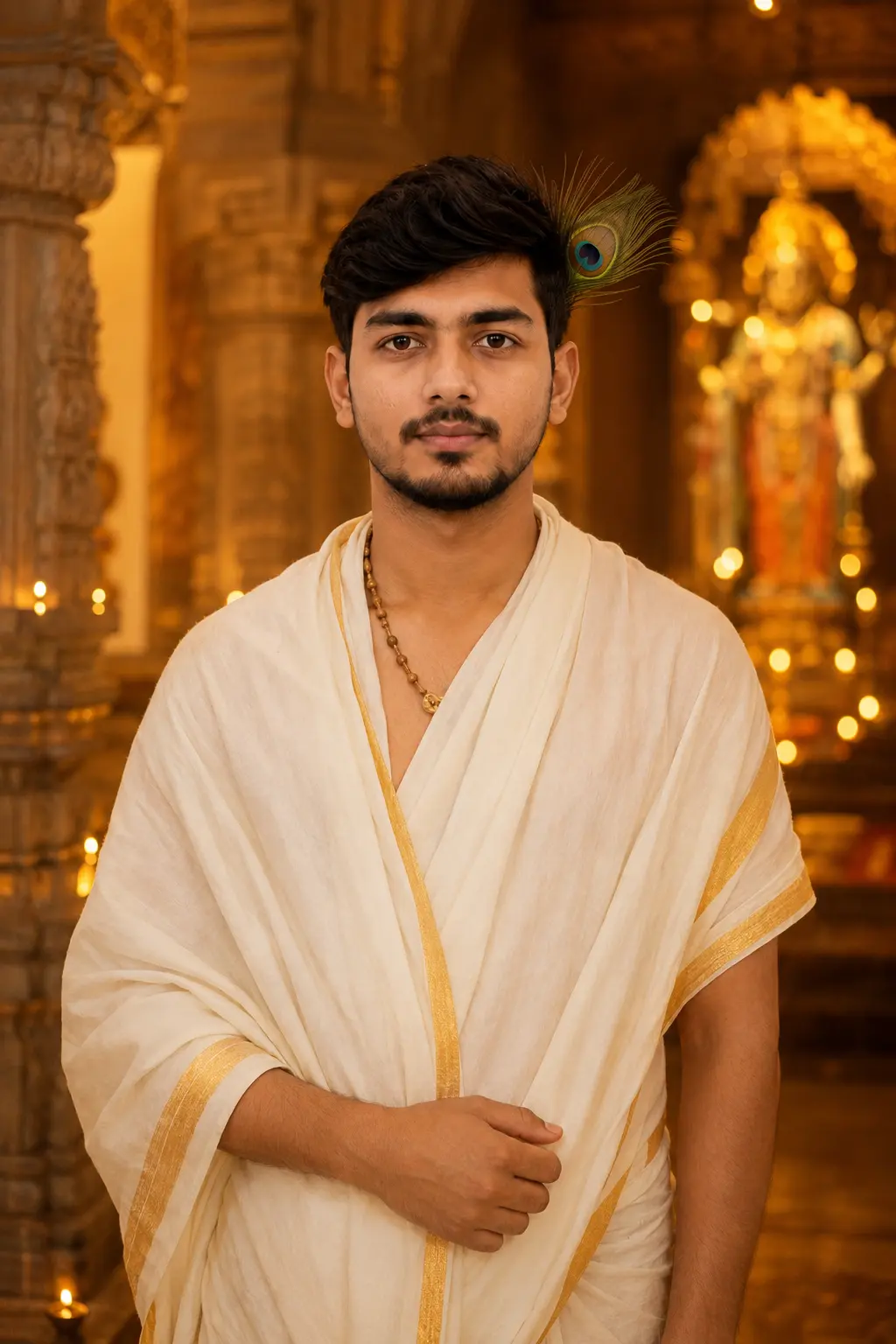
Tip: If the AI tool changes your hairstyle too much, add “keep my original hairstyle and hairline” to the prompt.
2. Flute and Peacock Feather Close-Up
A tighter, more personal shot focused on the face and a couple of iconic Krishna elements.
Tip: Close-up shots are more forgiving for AI tools since there’s less background and fewer hands to get wrong – a good option if your last attempt had distortion issues.
3. Royal Krishna-Inspired Look
For a richer, more festive version with jewelry and a regal backdrop.
Design a royal-style portrait of me wearing a gold-embroidered outfit, a jeweled crown-style headpiece, layered necklaces, standing against a palace-style pillared background with warm ambient lighting, cinematic but realistic detail, face matched closely to the reference photo.
Tip: Heavy jewelry is one of the trickiest details for AI to render cleanly. Keep the description of jewelry short and specific rather than listing five different ornaments.
4. Vrindavan-Inspired Outdoor Scene
A softer, nature-based setting instead of an indoor or temple backdrop.
Create an outdoor portrait of me standing near a small pond surrounded by trees and cows in the background, wearing a simple cream-colored traditional outfit, gentle morning light, peaceful rural atmosphere inspired by Vrindavan, realistic textures, face preserved from the uploaded photo.
Tip: Mention “soft daylight, not studio lighting” if you want the scene to look natural rather than artificially lit.
5. Janmashtami Temple Celebration
Good for a festive, crowd-adjacent feel without needing an actual crowd in the shot.
Generate a portrait of me standing inside a beautifully decorated temple during Janmashtami, with diyas lit around a Krishna idol, marigold garlands and hanging bells in the background, warm golden lighting, devotional expression, my face kept true to the uploaded photo.
Tip: If the idol in the background looks distorted, ask the tool to “keep the idol simple and slightly out of focus” — that usually fixes it.
6. Dahi Handi Celebration Scene
A more energetic, action-adjacent concept for anyone who wants something less posed.
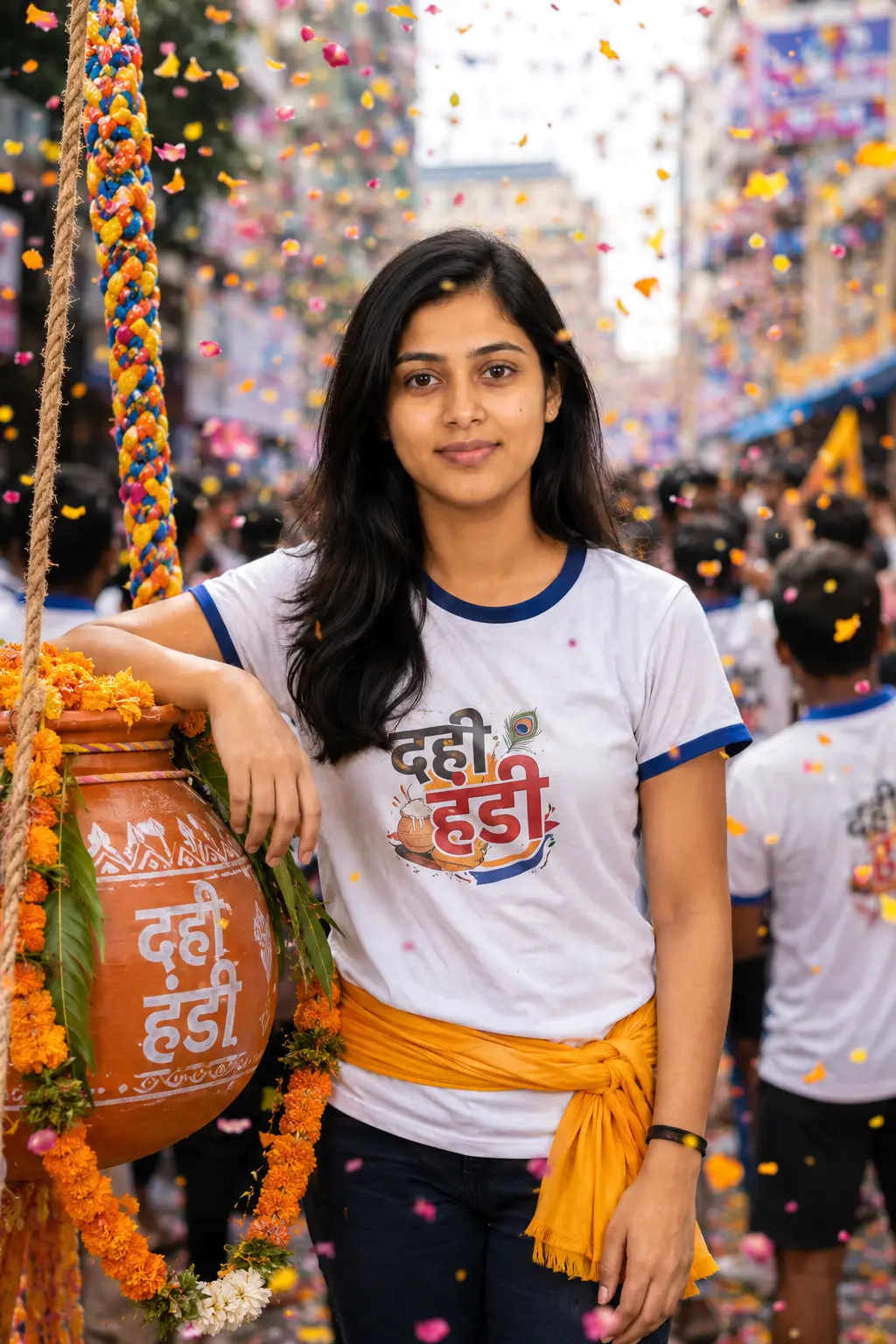
Tip: Keep any “in motion” details (like jumping or a human pyramid) out of the prompt unless you’re okay with extra editing rounds — full-body action poses are still one of the harder things for AI tools to get right.
7. Radha-Krishna Inspired Composition (Solo Version)
For people who like the Radha-Krishna visual pairing but want a solo shot rather than a couple’s photo.
Generate a portrait of me in a Radha-inspired outfit — a pastel pink or yellow lehenga with traditional jewelry — standing beside a small decorated Krishna idol and a pot of butter (makhan), flower petals scattered around, dreamy soft lighting, face matched to the uploaded photo.
Tip: This works well as a solo shot precisely because it avoids the two-person composition problem, where AI tools often blend or distort a second face.
Also Check: More Prompt Article
8. Bal Krishna-Inspired Concept (for Kids)
A playful, age-appropriate option for a child’s photo.
Create a cute, playful portrait of the child in the photo dressed as Bal Krishna, with a small crown, a flute, and a peacock feather, sitting near a pot of butter, soft pastel background, warm cheerful lighting, gentle and age-appropriate styling, facial features kept close to the original photo.
Tip: With children’s photos, use a well-lit, front-facing picture where the face isn’t partly hidden — AI tools tend to blur smaller or younger faces more than adult ones if the source photo isn’t sharp.
9. Cinematic Janmashtami Night Scene
A moodier, more dramatic option for people who want something less “festival poster” and more “movie still.”
Generate a cinematic night-time portrait of me standing outdoors during Janmashtami, string lights and diyas glowing softly in the background, a light blue or indigo outfit, moonlit atmosphere with warm accent lighting on the face, film-like color grading, face preserved from the uploaded photo.
Tip: Night scenes can wash out facial detail. If your result looks too dark or hazy, add “keep the face well-lit and clearly visible” to the prompt.
10. Festive Social Media Portrait/Poster Style
Built specifically for a square or vertical post rather than a natural photo.
Create a festive Janmashtami poster-style portrait of me, vibrant background with peacock feather motifs and soft bokeh lights, bold but tasteful color palette, clean composition suitable for an Instagram or WhatsApp status, my face kept accurate to the uploaded photo.
Tip: Ask for a “vertical 4:5 or 9:16 composition” directly in the prompt if you already know you’ll be posting it as a story or reel cover.
11. Minimal Modern Krishna-Inspired Look
For anyone who wants a subtler take rather than a full traditional outfit.
Generate a portrait of me with a single peacock feather accessory and a subtle blue-toned outfit, minimal jewelry, soft studio-style lighting, clean plain background, modern and understated Janmashtami-inspired styling, face matched closely to the uploaded photo.
Tip: This is a good “safe” option if earlier prompts gave you overly busy or cluttered backgrounds – fewer elements generally means fewer chances for something to look off.
Tips for Getting More Realistic Results
- Start with a genuinely good photo. This matters more than the prompt itself. Front-facing, clear, evenly lit, no heavy filters.
- Be specific but not overloaded. A prompt with 3–4 clear details (outfit, lighting, background, mood) usually outperforms one crammed with ten different elements.
- Add “keep my face 100% accurate to the uploaded photo” style language, but expect some variation. AI tools try to match facial structure, but you shouldn’t expect an identical match every time – results genuinely vary by tool, photo quality, and even the specific run.
- Change one thing at a time when regenerating. If a result is close but not right, tweak just the lighting or just the background instead of rewriting the whole prompt — it’s easier to tell what actually helped.
- Use follow-up instructions. Most AI chat tools let you respond to a generated image with something like “fix the left hand” or “make the crown smaller” instead of starting over.
How to Preserve Your Recognizable Facial Features
This is the part people care about most, and it’s worth being upfront: no AI tool can guarantee a perfect facial match every single time. But a few habits noticeably improve your odds:
- Upload a photo where your face takes up a decent portion of the frame – not a tiny face in a wide shot.
- Avoid sunglasses, heavy makeup filters, or beauty-mode edits on the source photo.
- Explicitly mention keeping your face, skin tone, and facial structure close to the reference photo in the prompt.
- If the tool offers a “reference image” or “consistency” feature separate from the main prompt box, use it – it usually does a better job than prompt wording alone.
- Compare the result to your original photo side by side before sharing. If the eyes, nose shape, or jawline feel off, that’s usually a sign to regenerate rather than accept it.
Common Problems and How to Fix Them
Distorted or extra fingers/hands This is still one of the most common AI image issues. If your prompt involves holding a flute or a pot, expect a higher chance of hand issues. Fix it by asking the tool to regenerate just the hands, or choose a prompt where hands are relaxed at the sides instead of holding an object.
Warped or unrealistic clothing patterns Heavily embroidered or patterned outfits sometimes render with strange, repeating, or melted-looking patterns. Simplify the outfit description, or ask for “subtle embroidery” instead of “heavily detailed embroidery.”
Face doesn’t look like you Usually caused by a low-quality source photo, a face turned too far to the side, or a background that’s too busy and pulling focus. Try a clearer front-facing photo and a simpler background prompt.
Background objects look melted or wrong (idols, diyas, jewelry) Small, detailed background objects are harder for AI to render cleanly. Ask the tool to keep background elements “simple” or “slightly blurred” so imperfections are less noticeable.
Lighting looks flat or fake Add a specific lighting reference like “warm golden-hour light” or “soft diya glow” instead of leaving lighting unspecified – vague prompts tend to default to flat, overly bright lighting.
Overall image looks too “AI-generated” or plastic Add “natural skin texture, avoid overly smooth or airbrushed skin” to your prompt. This one small line makes a bigger difference than most people expect.
Using Your Krishna AI Photo on Instagram, WhatsApp, and Facebook
Once you’re happy with your image:
- Instagram: Post as a feed photo, or crop to a 9:16 ratio for Stories and Reels covers. A short caption mentioning Janmashtami with a couple of relevant hashtags helps it reach more people interested in the festival.
- WhatsApp: Set it as your DP or status — a vertical crop tends to display better than a square one on status updates.
- Facebook: Works well as a profile photo or a standalone festive post; landscape or square crops both display fine on Facebook’s feed.
- General tip: Save an uncompressed version before uploading anywhere, since most social platforms compress images on upload and it’s easier to keep quality if you’re starting from the best possible file.
FAQs
1. Do I need a paid AI tool to create a Janmashtami AI photo? No. Both Google Gemini and ChatGPT offer free access with some daily/usage limits, which is enough to try several prompts and pick your favorite result.
2. Can I use these prompts on my phone? Yes. Both Gemini and ChatGPT have mobile apps, and the entire process — upload, paste prompt, generate — works the same way as it does on a computer.
3. Why does my AI photo not look exactly like me? AI image tools generate a new image based on your photo rather than editing the original pixels, so some variation is normal. Using a clear, front-facing photo and specific prompt wording helps, but an exact match isn’t guaranteed.
4. Can I edit a group photo instead of a solo one? You can try, but results are noticeably less reliable with multiple faces in one frame. For your first few attempts, a solo photo will give you a more consistent outcome.
5. Is it okay to use these prompts for a child’s photo? Yes, the Bal Krishna-inspired prompt above is written for that. Just make sure the source photo is clear and well-lit, since AI tools tend to struggle more with smaller or partially visible faces.
6. How many times can I regenerate the same prompt? There’s no fixed number — most free plans allow multiple attempts per day. If a result isn’t right, regenerating with small tweaks is completely normal and often necessary.
7. Can I combine two prompt ideas, like a temple background with a royal outfit? Yes, you can mix elements from different prompts above. Just try not to combine too many details at once, since overloaded prompts tend to produce more cluttered or inconsistent results.
Final Thoughts
Creating a Janmashtami AI photo doesn’t require any editing skill — it just needs a decent starting photo and a prompt that’s specific enough to guide the AI toward what you actually want. Start with one of the prompts above, expect to regenerate at least once or twice, and use the troubleshooting section if something looks off. Once you find a prompt style that works well with your photo, you can reuse that same structure for other festivals too.